











Contents
On Android, install 1win only from a current operator-sourced package whose origin you have confirmed, if one is available and you are eligible to use the service. On iPhone, open the confirmed, accessible website in Safari and add it to your Home Screen. An APK cannot be installed on iOS.
This research did not establish a live, verified link to a 1win installation package. The existing 1win partner page is a navigation route, not a verified direct download or a safety guarantee. It may be an affiliate link. Neither that route nor a familiar logo proves where a file came from.
The procedure below helps you check the source, manage installation permissions and diagnose errors. It does not validate a particular package: no 1win APK was downloaded or run, and its current build, signature and requirements were not verified.
What to check before downloading
First establish that you are eligible to use the service and that the website and package genuinely belong to the operator. If you cannot establish the source, stop rather than download or install the file.
Check these points:
- Age: You must meet the applicable local minimum age—at least 18, and potentially higher in your jurisdiction.
- Actual location: Check the law where you are physically located and the operator’s current country restrictions. The website’s language does not establish eligibility.
- Hostname and redirects: Compare the address with one you already know from your account or have confirmed through an established support channel. If a redirect takes you to an unfamiliar hostname, establish why before downloading. An affiliate redirect does not replace this check.
- File origin: Avoid packages forwarded through messaging apps, modified apps, “predictors” and apps promising free money.
- Device warnings: HTTPS, a recognizable logo and an antivirus result showing no detected threats are not certification that an app is safe.
If the download control is unavailable or the package’s origin remains uncertain, use the confirmed mobile website only if access is legal for you. Do not seek mirrors or workarounds for access restrictions or website security checks.
How the APK, Safari web app and mobile browser differ
An APK installs an Android app; Safari can add a website-based web app to the iPhone Home Screen. An ordinary mobile browser requires no separate 1win installation.
| Feature | Android APK | Safari Home Screen web app | Ordinary mobile browser |
|---|---|---|---|
| Installation | Open the Android installation package and approve installation | Add the website to the iPhone Home Screen | Open the confirmed website address |
| Permissions | May require installation permission for the specific app opening the APK; assess other requests separately | No APK installation permission or configuration profile is required; assess website requests separately | The browser handles website permission requests |
| Updates | Obtain packages from the same confirmed source; the update method depends on the app | Changes come from the website; reopening or refreshing may be needed | Changes come from the website; refreshing may be needed |
| Offline use | Installation does not establish offline games; service access requires an internet connection | A Home Screen icon does not guarantee offline games | Service access requires an internet connection |
| Account and restrictions | Use your existing account if the current operator supports it in the app; service restrictions still apply | The same service and account restrictions apply | The same service and account restrictions apply |
A verified native 1win listing in Google Play or the App Store was not established here. That does not mean no listing exists in any store or region. If you find one, check the publisher, regional availability and its connection to the confirmed operator.
There is no verified basis here for claiming that one option is faster, safer, offers better game odds or provides extra benefits.
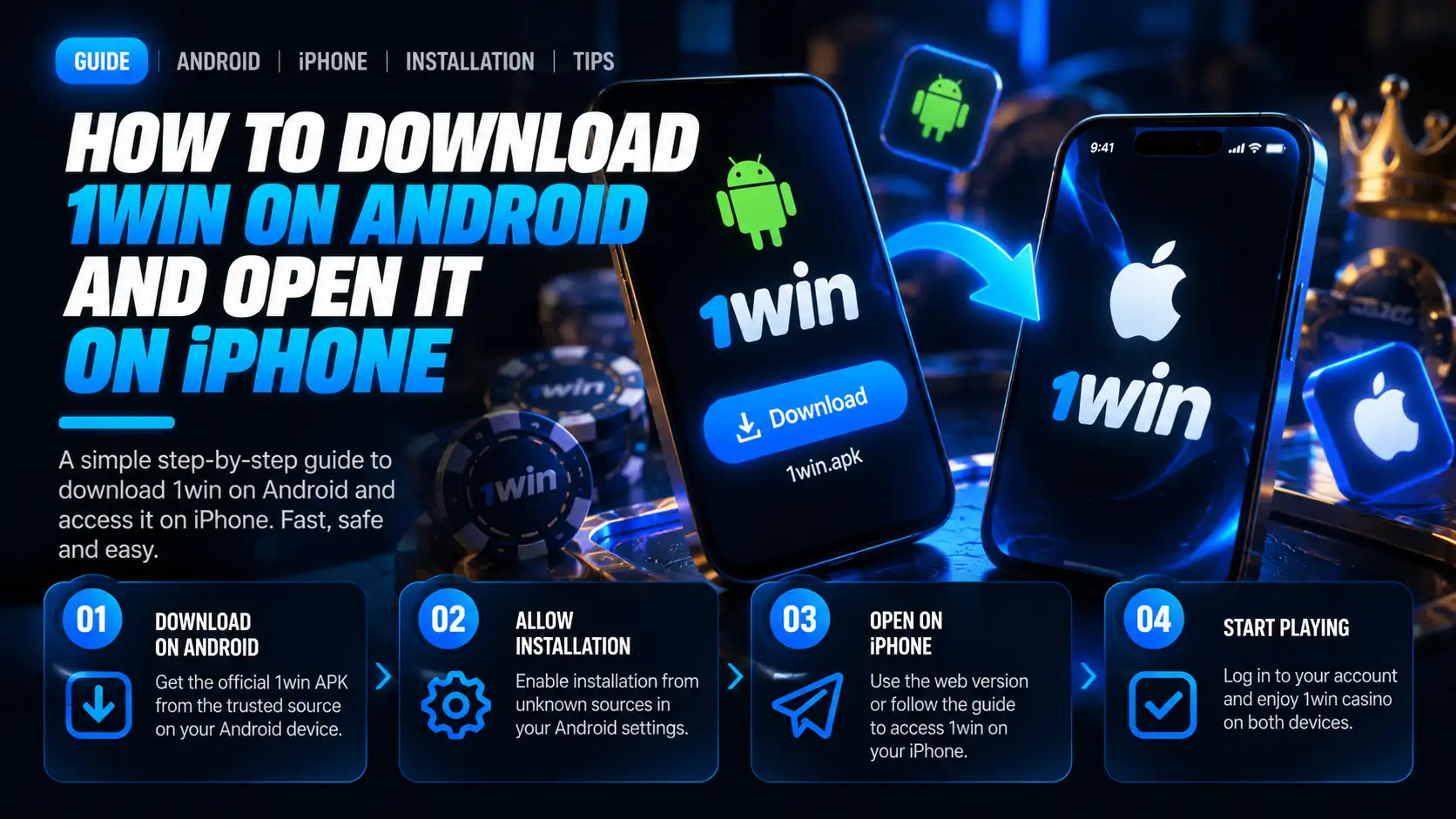
How to install a confirmed APK on Android
Open the confirmed operator source, check the current package, and grant installation permission only to the app actually opening the file. Keep Play Protect enabled throughout.
- Open the confirmed operator website. Do not start with a message attachment or an unverified search result.
- Find the current Android app download control. Its name and position may change; no specific 1win interface button was verified here.
- Check the source and requirements before downloading. Compare the supported Android version with your device, and review the build and file size if published. If details are missing, ask through a known support channel rather than relying on old specifications.
- Wait for the download to finish. Then open the downloaded installation file through the browser or file manager.
- If Android requests permission, allow only the app opening the APK to install it. Follow the system prompt or search Settings for “Install unknown apps.” Menu names vary by manufacturer and Android version. Samsung’s instructions illustrate this source-specific setting; they do not validate a 1win package.
- Proceed only if there is no security block. If the device identifies a threat or blocks installation because of developer-verification requirements, stop. Do not disable protection.
- Revoke the source’s installation permission afterward. Return to the same settings screen and turn off permission for the browser or file manager to install further packages.
- Log in to your existing account, if the current operator supports it in the app. Make sure you have access to your recovery method first.
Permission to install from a particular source is separate from Play Protect scanning. Android Help explains the risks of downloading outside Google Play, while Google’s Play Protect guidance recommends keeping protection enabled.
Excerpt from Google documentation explaining Play Protect and keeping app scanning enabled
Source: official Google Play Protect documentation, viewed 13 October 2026. This is a documentation excerpt, not a screenshot of a tested 1win installation; your Android version may differ.
How to add the 1win website to your iPhone Home Screen
Use Safari to add the confirmed, accessible website to your Home Screen. The resulting icon opens a website or web app—not an APK or a verified native App Store app.
These steps follow Apple’s iOS 26 guide. Controls may appear in different places on other versions or Safari layouts.
- Open Safari.
- Visit the confirmed, accessible operator website. Check the address and your eligibility first.
- Open the sharing controls. Depending on the Safari layout, use Share or the menu that provides access to it.
- Choose Add to Home Screen. If it is missing, use Edit Actions to add it.
- Turn on Open as Web App, if available.
- Tap Add.
Excerpt from Apple’s iOS 26 guide showing how to add a Safari website to the iPhone Home Screen
Source: official Apple iPhone User Guide for iOS 26, viewed 13 October 2026. This is a documentation excerpt, not a phone capture of a 1win installation or test.
These steps do not require a configuration profile, certificate installation or trust in an enterprise developer. Apple’s profile guide describes profiles as a separate way to configure device settings. Do not accept those extra steps merely to add a website icon.
Where to check system requirements and free storage
Check your operating system version and available storage in your phone’s settings, then compare them with current requirements from the confirmed package source and installer. No universal current minimum for 1win was verified here.
On Android, open Settings and look under the phone’s information section for the Android version. Check the storage section for available space. If the menu names differ, use Settings search.
On iPhone, open Settings → General → About for the iOS version and Settings → General → iPhone Storage for storage information. Match Safari instructions to your installed iOS version.
Download size and required installation space are not the same: the phone also needs room to process and store installation files. Do not rely on an old APK size. The current build, memory requirements and installation time were not verified, so there is no supported promise that setup will take a particular number of minutes.
If the package or compatibility remains uncertain, use the confirmed website in a browser only where legally permitted. The app needs internet and service access; a Home Screen icon does not guarantee website availability or offline games.
How to update without losing account access
Get APK updates from the same confirmed source and check your recovery access beforehand. Do not uninstall the app as your first attempt to fix an update error.
Android updates depend on compatible app signing, as explained in Android’s app-signing documentation. The signature of a current 1win package was not verified here. If the installer reports a conflict, do not assume an unfamiliar file is a suitable update or remove the existing app just to install it.
It is not accurate to say that every APK updates automatically—or that APK apps never do. Check the update method provided by the current confirmed source.
Server-side account information is different from local cache and app settings. Clearing app data or uninstalling may remove a saved login and local information; 1win data retention was not verified. Before taking either step, make sure you can recover account access.
A Safari web app follows website updates. If a page appears outdated, reopen it or refresh it in the browser; no separate APK is needed.
What to do when downloading, installing or logging in fails
Start with the exact error message and non-destructive checks, not uninstalling or clearing data. Security blocks, an uncertain source and legal restrictions are reasons to stop rather than find a bypass.
| Problem | Possible cause | Action | When to stop |
|---|---|---|---|
| File will not open or download stopped | Incomplete download | Check whether the download finished; download again only from the confirmed source | The source can no longer be confirmed or the file comes from a suspicious address |
| Not enough space | Insufficient free storage | Check storage and remove only files you no longer need | Freeing space would put important data at risk |
| Installer reports incompatibility | Unsupported Android version or unsuitable build | Compare your system with published requirements; use the browser if legally permitted | No compatible, confirmed package is available |
| Update conflicts with the installed app | Possibly incompatible signing | Check the update’s origin and contact an established support channel | Signing or origin remains unclear; do not uninstall for that file |
| Installation from the source is denied | Browser or file manager lacks installation permission | Use the system prompt to allow only the actual source, then revoke permission afterward | Device management or a separate security block prevents installation |
| Protection or developer verification blocks the package | Detected risk or unmet system requirements | Stop and check the message and package source | Continuing would require disabling protection or bypassing verification |
| Website will not open | Connection issue, service issue or access restriction | Check your connection and the address; ask a known support channel about availability | Access is legally restricted or requires bypassing a security restriction |
| Login fails | Incorrect credentials, account issue or service issue | Check your input and use the provided recovery process | A third-party form or person requests your password or one-time code |
Additional developer verification can block installation on supported devices, as described in Android Help. It is not a universal explanation for installation errors; follow the message shown on your device.
Before clearing data, uninstalling or registering again, save the exact error wording without personal details. Check the connection, storage, compatibility and source first.
What to do about your account and promo code
Login, registration, identity verification and depositing are separate actions. Installing an app does not create an account, complete KYC or require you to deposit money.
Use your established account if the current operator supports it in the app or website. If login fails, use account recovery rather than creating a duplicate account. Never give passwords or one-time codes to support agents or enter them into third-party APK download forms.
The promo identifier is toolsgambling, but no current offer amount, eligibility or participation terms were verified here. Before any money-related action, read the current terms, including wagering requirements where applicable. A bonus is not immediately withdrawable cash.
See the separate guides to registration, the promo code and withdrawal. These guides do not replace checking the operator’s current terms.
Having an APK does not demonstrate a payout or provide better game odds. Logging in does not demonstrate a successful withdrawal either.
How location and responsible use affect your decision
Base your decision on your actual location and local law, not the website’s language or a claim of an offshore licence. Installation is not a reason to deposit.
In Russia, check the operator’s legal entity against the Federal Tax Service licence registry and separately establish its connection to the actual domain. Russian authorization for 1win was not verified here; an offshore licence claim does not replace that check.
India, based on sources viewed 13 October 2026: Act No. 32 of 2025 extends across India, including services offered from abroad. Sections 5–7 prohibit online money-gaming services, their advertising and facilitation of fund transfers. The notification dated 22 April 2026 brought the Act into force on 1 May 2026. This describes the general law, not a court ruling about 1win. This guide does not recommend installing an app for money games in India.
If use is legal and you choose to continue, set time and spending limits beforehand. Do not chase losses. Being able to open a website or install a file establishes nothing about local payment availability or withdrawal speed.
Your before-and-after checklist
The result should be clear: either you have a confirmed, legally permitted way to access the service, or you stop without installing an uncertain file.
Before installation: Check your age, location, website and package source, system compatibility, free storage and account recovery access. If the package is unconfirmed, do not install it. Browser access is an alternative only where legally permitted.
After Android installation: Keep Play Protect enabled, revoke installation permission for the source you used, and log in only through the confirmed app. If an error appears, start with its message rather than deleting data.
After adding the site on iPhone: Check that the icon opens the intended, confirmed website. Do not install a configuration profile or certificate for this purpose.
In either case, read the current service terms first. Installation, login and a promo identifier do not prove a payout or oblige you to deposit.
Frequently Asked Questions
An APK is an Android installation package, not a standard desktop program. No verified way to run the 1win package on a PC was established here. If the service is legally available to you, use the confirmed website in a browser rather than installing unfamiliar software that promises access or better gameplay.
No. Adding a website from Safari to the Home Screen does not require a configuration profile, certificate or trust in an enterprise developer. A profile is a separate device-configuration mechanism. If a shortcut setup asks you to install one, stop and check the source.
The current package, file size, version and developer signature were not verified in this research. Check current requirements and file size with the confirmed operator source before downloading, and check version information in the installer where available. An old file size does not establish the properties of a new package.
Do not disable protection or bypass the block. Stop installing, save the warning text without personal information, and ask about the package through an operator support channel you already know. Allowing a browser to install apps does not override security checks.
Before updating, check that you can use your account recovery method. Obtain updates from the same confirmed source, and do not uninstall the app as your first troubleshooting step. Server-side account information differs from local app data; 1win data retention was not verified here.
Evgeniy Volkov
Verified ExpertFullstack developer with a background in mathematics. I build the calculators and game-style tools on ToolsGambling with Pixi.js and modern web tech, and every result uses transparent probability formulas you can verify yourself.